


I have spent a couple of days trying to get replacement ture pressure sensors working with little success. That is, until today 
The sensors were cheap AliExpress items so I was not expecting much. The process, however, was failing before the sensors could even be expected to work.
I am using my "old" GS911 interface, the yellow-bodied one, which I bought back when it was first launched. The PC software that is required for this interface was failing whenever I tried to manually add the sensor IDs. The error reported is "Negative response from controller : request out of range" - not particularly informative.
I have been doing a lot of reading on the subject and pieced together a few nuggets of wisdom to complete the task...
First off, is that when adding sensors they must be done in a very specific order, if the controller allows 2 sets of wheels the order is front set A, rear set A, rear set B, front set B. The logic is based on a car it seems, starting with the front left wheel then working around the vehicle anti-clockwise.
Second, and very important, is to ignore the error "request is out of range" on the first sensor; continue adding the second sensor, when that is done both sensirs will be added. I spent hours trying to get past the error, I had assumed that the 7 digit IDs provided with the AliExpress units were duff. So, I was experimenting with the IDs from online examples, which also failed until I hit on the solution.
If you just update existing IDs, it may work better, without errors. I had deleted the original sensors because they were dead, and repairs seem to be short lived.
The process is :
Clear the pressure sensors, one by one :
In tyre Pressure Monitors -> Tyre Pressure Sensor Learning
Click on Advanced
In this order : rear B, front B, rear A, Front A click on "Clear learned sensor ID", then click on Advanced until all IDs are gone.
Now clock on Advanced again, click on the "Front Sensor A" radio button - it is selected by default. Type the ID in the box, the click on "Write sensir ID", that will throw the "negative response ....request out of range" error. Ignore it, click on Ok then click on Advanced again.
In the box, click on the "Rear sensor A" radio button, type the rear sensor ID and then "Write sensor ID".
The 2 sensor IDs that had been added now show up.
For those of us that have bikes that support 2 wheel sets, set B must be done in the order of "Rear sensor B" then "Front sensor B"
The sensors were cheap AliExpress items so I was not expecting much. The process, however, was failing before the sensors could even be expected to work.
I am using my "old" GS911 interface, the yellow-bodied one, which I bought back when it was first launched. The PC software that is required for this interface was failing whenever I tried to manually add the sensor IDs. The error reported is "Negative response from controller : request out of range" - not particularly informative.
I have been doing a lot of reading on the subject and pieced together a few nuggets of wisdom to complete the task...
First off, is that when adding sensors they must be done in a very specific order, if the controller allows 2 sets of wheels the order is front set A, rear set A, rear set B, front set B. The logic is based on a car it seems, starting with the front left wheel then working around the vehicle anti-clockwise.
Second, and very important, is to ignore the error "request is out of range" on the first sensor; continue adding the second sensor, when that is done both sensirs will be added. I spent hours trying to get past the error, I had assumed that the 7 digit IDs provided with the AliExpress units were duff. So, I was experimenting with the IDs from online examples, which also failed until I hit on the solution.
If you just update existing IDs, it may work better, without errors. I had deleted the original sensors because they were dead, and repairs seem to be short lived.
The process is :
Clear the pressure sensors, one by one :
In tyre Pressure Monitors -> Tyre Pressure Sensor Learning
Click on Advanced
In this order : rear B, front B, rear A, Front A click on "Clear learned sensor ID", then click on Advanced until all IDs are gone.
Now clock on Advanced again, click on the "Front Sensor A" radio button - it is selected by default. Type the ID in the box, the click on "Write sensir ID", that will throw the "negative response ....request out of range" error. Ignore it, click on Ok then click on Advanced again.
In the box, click on the "Rear sensor A" radio button, type the rear sensor ID and then "Write sensor ID".
The 2 sensor IDs that had been added now show up.
For those of us that have bikes that support 2 wheel sets, set B must be done in the order of "Rear sensor B" then "Front sensor B"
Last edited:


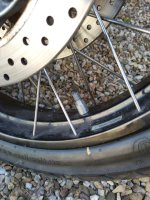
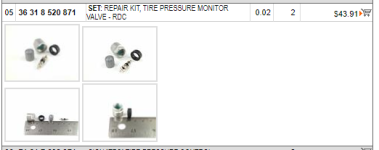


 . I started waking up Rear and at some stage Front disappeared!