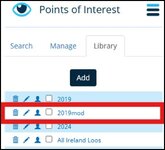
For the Irish Photo Rally, and other GPX waypoints that you might import into MRA to store as POI’s; all that MyRoute app stores is three columns of data, Longitude, Latitude, and whatever text describes the waypoint.
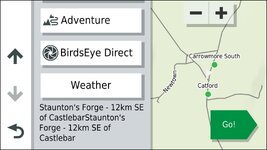
I noticed when importing a GPX file for Photo Rally POI’s that in MRA they looked like this.
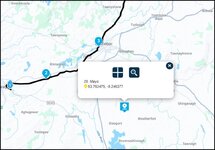
So not very descriptive of what you have to take a photo of. But by exporting the waypoints as a CSV file and with a bit of manipulation in a spreadsheet you can get them to look like this.
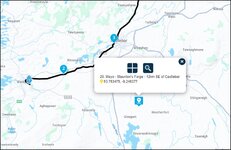
Which would make identifying the subject of the photo easier to identify (other than carrying a print out of the waypoints)
If you use POI loader to load waypoints onto a Garmin GPS unit (any that take NTU maps2013 on) the additional info above automatically comes over from the “Notes” tab as it appears on the Basecamp waypoint properties dialog.
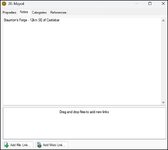
In this case you get it twice due to the way its stored in the GPX file produced by the Photo Rally organisers (it will show when the GPX is exported from Basecamp as a CSV)
To get it into a CSV format you can use Basecamp as this can export GPX data as CSV or you can use a GPX converter I tried https://mygeodata.cloud/ and it worked fine spitting out the GPX file as a CSV in Zip format. As in all things be careful what you download.
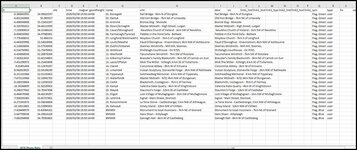
Above is what MyGeodata spat out
And Below is the data Basecamp spits out with lots of additional crud you don’t need.
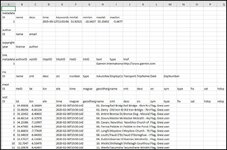
The format that MyRoute app needs for a CSV import is Longitude, Latitude and a name/description if you look at the spreadsheet above we need to lose ID keep lat and long….but change the order and join the name and cmt fields to get a meaningful description to appear in the MyRoute app POI. First business is to delete the columns and rows not required.
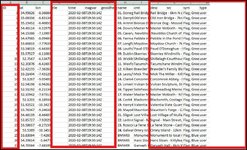
You should end up with something like this
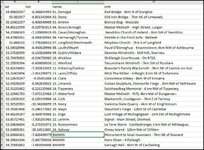
The final thing that needs to be done is to swap the lat and long columns round as MyRoute app takes Long first. And to Join name and cmt to get a decent indication of the purpose of the waypoint displayed on MRA. To joint columns C and D. Create an additional column at E and enter the formula =c2&” – “&d2 this just tells the spreadsheet to join the contents of c2 and d2 with a space dash space as text between. This makes the text easier to read in MRA
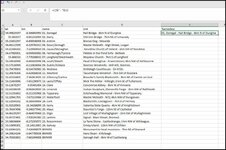
Then pull down the formula to join all the columns
Insert a blank Column at C
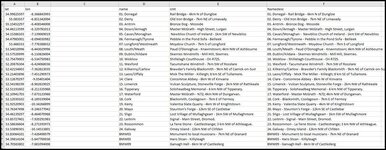
Copy E to C but use the “Paste Special” option and only transfer the “values” if you don’t then when you delete the now redundant columns your data will disappear.
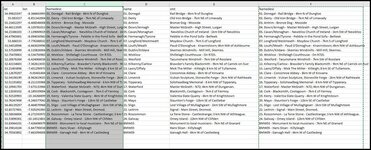
Finally create a blank column to copy longitude into and delete the empty column
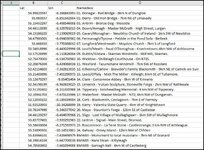
You will end up with this which is the format for import into MyRoute app.
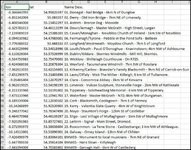
This is shown in Excel but the process works exactly the same way with the same formula in Google Sheets and Libre Office Calc. (I checked).
Save the file as a CSV and upload it to MRA
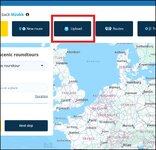
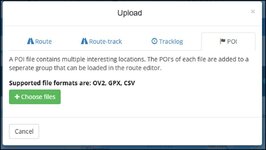
Choose the POI dialog
tbc
I noticed when importing a GPX file for Photo Rally POI’s that in MRA they looked like this.
So not very descriptive of what you have to take a photo of. But by exporting the waypoints as a CSV file and with a bit of manipulation in a spreadsheet you can get them to look like this.
Which would make identifying the subject of the photo easier to identify (other than carrying a print out of the waypoints)
If you use POI loader to load waypoints onto a Garmin GPS unit (any that take NTU maps2013 on) the additional info above automatically comes over from the “Notes” tab as it appears on the Basecamp waypoint properties dialog.
In this case you get it twice due to the way its stored in the GPX file produced by the Photo Rally organisers (it will show when the GPX is exported from Basecamp as a CSV)
To get it into a CSV format you can use Basecamp as this can export GPX data as CSV or you can use a GPX converter I tried https://mygeodata.cloud/ and it worked fine spitting out the GPX file as a CSV in Zip format. As in all things be careful what you download.
Above is what MyGeodata spat out
And Below is the data Basecamp spits out with lots of additional crud you don’t need.
The format that MyRoute app needs for a CSV import is Longitude, Latitude and a name/description if you look at the spreadsheet above we need to lose ID keep lat and long….but change the order and join the name and cmt fields to get a meaningful description to appear in the MyRoute app POI. First business is to delete the columns and rows not required.
You should end up with something like this
The final thing that needs to be done is to swap the lat and long columns round as MyRoute app takes Long first. And to Join name and cmt to get a decent indication of the purpose of the waypoint displayed on MRA. To joint columns C and D. Create an additional column at E and enter the formula =c2&” – “&d2 this just tells the spreadsheet to join the contents of c2 and d2 with a space dash space as text between. This makes the text easier to read in MRA
Then pull down the formula to join all the columns
Insert a blank Column at C
Copy E to C but use the “Paste Special” option and only transfer the “values” if you don’t then when you delete the now redundant columns your data will disappear.
Finally create a blank column to copy longitude into and delete the empty column
You will end up with this which is the format for import into MyRoute app.
This is shown in Excel but the process works exactly the same way with the same formula in Google Sheets and Libre Office Calc. (I checked).
Save the file as a CSV and upload it to MRA
Choose the POI dialog
tbc
Last edited by a moderator: