PanEuropean
Registered user
This information is for SP 26xx users who have software 2.95 beta or higher loaded. It explains how to have the GPSR automatically re-arrange waypoints along a route so they can be reached in either the shortest overall distance or fastest travel time, depending on what the over-riding preference for the route (shortest or fastest) is.
First, you need to create a route that has three or more waypoints in it (start, end and at least one intermediate waypoint). This can either be done on the MapSource application and downloaded to the GPSR, or done on the GPSR itself. This example will explain how to do it on the GPSR alone, without using MapSource.
1) Press and hold the ROUTE key (MENU button on the front of the case). Select NEW from the route menu page to begin creating a new route.
2) Select a start point and end point as you are prompted to do so. The start point will never change as the route is re-ordered later, so get that one right. You will have a choice later on to allow the GPSR to change the end point (if it does not matter where you end, e.g. you are on a delivery route) or to tell the GPSR not to change the end point (if you want the route to end at the waypoint LOCALPUB, even if that does not yield the shortest or fastest route).
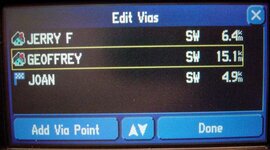
3) Once the start and end points have been chosen, the GPSR will calculate a route. Press and hold the ROUTE button (MENU button on the front of the case) again. Select ADD/EDIT VIAS from the route menu page, and add as many via points as you want. (see picture below) It does not matter what sequence you enter them in. If you want to add additional via points, press ADD VIA POINT at the bottom of the screen. When you have entered your final via point and you don't want to enter any more, press the little icon at the bottom of the screen, in the middle, that looks like an "UP-DOWN" set of arrows.
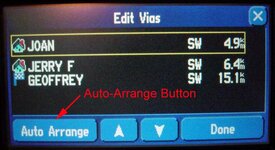
4) Pressing that little button that looks like a set of arrows pointing up and down will take you to another screen (see SECOND picture below) where you have a choice of either arranging the via points manually, using an up arrow or a down arrow to sequence them, or asking the GPSR to auto-arrange the waypoints by pressing the AUTO ARRANGE button. So, press the AUTO ARRANGE button, just for fun...
5) You will then be asked if you want to allow the destination point to be reordered. The destination point is the place you specified back in step 2 as the end point of your route. Choose yes or no, depending on whether it matters to you or not that your route ends at the place you specified (e.g. the local pub).
6) The GPSR will then automatically arrange the waypoints, and present you with the list for your review. If you like what you see, press DONE. If you want to make further changes, such as manually re-ordering a few waypoints, proceed as outlined in step 4. The screen does not change after the automatic arranging has completed, although the order of the waypoints may change.
7) Once you begin driving the route, you can make changes as you go. For example, if you are on a delivery route that you have auto-arranged for the shortest or fastest time, and one customer calls you and asks if you could please visit them first (or last), you can manually re-order that one customer to either the first or last position.
Hope this gives you enough information to try the feature out. Remember, it is beta software - not yet in final format - and Garmin appreciates your comments, suggestions, and feedback.
PanEuropean
First, you need to create a route that has three or more waypoints in it (start, end and at least one intermediate waypoint). This can either be done on the MapSource application and downloaded to the GPSR, or done on the GPSR itself. This example will explain how to do it on the GPSR alone, without using MapSource.
1) Press and hold the ROUTE key (MENU button on the front of the case). Select NEW from the route menu page to begin creating a new route.
2) Select a start point and end point as you are prompted to do so. The start point will never change as the route is re-ordered later, so get that one right. You will have a choice later on to allow the GPSR to change the end point (if it does not matter where you end, e.g. you are on a delivery route) or to tell the GPSR not to change the end point (if you want the route to end at the waypoint LOCALPUB, even if that does not yield the shortest or fastest route).
3) Once the start and end points have been chosen, the GPSR will calculate a route. Press and hold the ROUTE button (MENU button on the front of the case) again. Select ADD/EDIT VIAS from the route menu page, and add as many via points as you want. (see picture below) It does not matter what sequence you enter them in. If you want to add additional via points, press ADD VIA POINT at the bottom of the screen. When you have entered your final via point and you don't want to enter any more, press the little icon at the bottom of the screen, in the middle, that looks like an "UP-DOWN" set of arrows.
4) Pressing that little button that looks like a set of arrows pointing up and down will take you to another screen (see SECOND picture below) where you have a choice of either arranging the via points manually, using an up arrow or a down arrow to sequence them, or asking the GPSR to auto-arrange the waypoints by pressing the AUTO ARRANGE button. So, press the AUTO ARRANGE button, just for fun...
5) You will then be asked if you want to allow the destination point to be reordered. The destination point is the place you specified back in step 2 as the end point of your route. Choose yes or no, depending on whether it matters to you or not that your route ends at the place you specified (e.g. the local pub).
6) The GPSR will then automatically arrange the waypoints, and present you with the list for your review. If you like what you see, press DONE. If you want to make further changes, such as manually re-ordering a few waypoints, proceed as outlined in step 4. The screen does not change after the automatic arranging has completed, although the order of the waypoints may change.
7) Once you begin driving the route, you can make changes as you go. For example, if you are on a delivery route that you have auto-arranged for the shortest or fastest time, and one customer calls you and asks if you could please visit them first (or last), you can manually re-order that one customer to either the first or last position.
Hope this gives you enough information to try the feature out. Remember, it is beta software - not yet in final format - and Garmin appreciates your comments, suggestions, and feedback.
PanEuropean