How to.... Use a Chiggee AIO6 with my MRA App.

grantmac

Commuting between NL & UK
UKGSer Subscriber
Joined
Feb 7, 2017
Messages
4,063
Reaction score
5,295
Location
The Hague, Holland
just bought a Chiggee AIO6 and am figuring out how to use this with my MRA App. Never done this before and am finding my way.
Some questions:
1. I read about downloading the routes and maps to my iphone so as it works without internet. Seems pretty logical as I am sure there will be places where there is no internet along the route so how to do this?
2. I tried to download one of my routes and it offers a number of options in the menu: sync, 1.1 routes, GPX etc and many more - what should I be doing?

Its all a bit complex for an old Basecamp user so help is appreciated

======

Title edited a smidge.

Richard
 
Last edited by a moderator:
In some ways its simpler than basecamp.
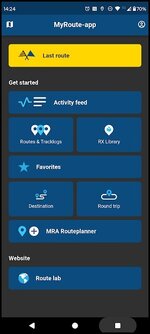
1. I'm an android user so this might be a bit different. Open app click three lines/hamburger top left.

1754227571716.jpg

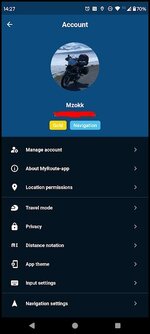
Click the little account Icon top right.

1754230711043.jpg

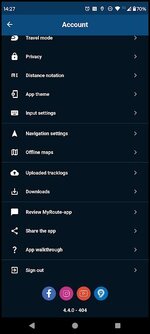
Scroll down to offline maps and load whatever you need.

1754227860988.jpg

2.You can sync your phone with MRA and you have all of your routes all of the time on your phone. If you make a change on the MRA website or on your phone these changes will be reflected the next time you have phone signal (if the phone has a sim) or whenever you next have wifi access if you have a dumb phone.

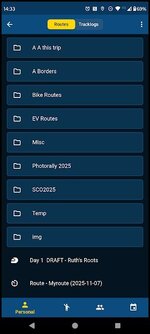
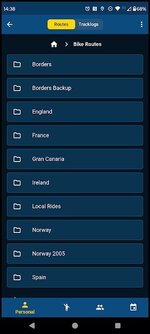
If you have chosen to sysc you get this type of menu when you click on routes and tracklogs.

1754228099949.jpg

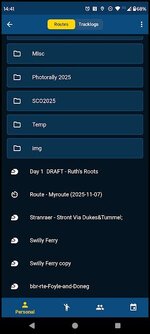
you can have as many sub folders as you wish. I copy routes into AA this trip when I'm doing a tour and I then have a "working" copy I can mess about with and the original in its country file. Its called AA this trip so that its always at the top of the menu list on the phone or Android Auto. But if I go into Bike route in that menu I have a sub menu thus.


1754228466914.jpg

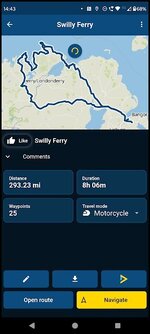
To select a route in this case Swilly Ferry.
1754228610891.jpg
Just touch the Icon.

1754228724886.jpg
hit the navigate button and your away.

On Android Auto (Carplay should be similar.)TBC.
 
Last edited:
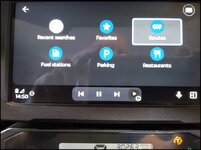
On a mirroring device. When your phone is connected it will present you with a screen and search Icon top right. When you click on this you get this screen.
1754229561388.jpg

Click on Routes.
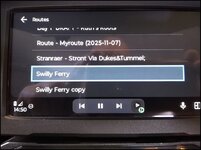
Scroll to the route.

1754229611964.jpg

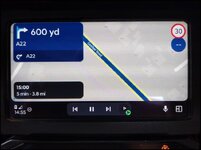
Click on that and it goes back to the map and calculates the route.
And off you go.

1754229721533.jpg

I sync my routes with the phone so that I don't have to download anything I know Wapping works a different system and downloads only the routes he needs for a trip.
 
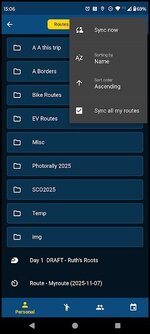
To sync all of your routes use this dialog. This is accessed by clicking the three dots on the top right of the Routes and Tracklogs screen.

1754230039756.jpg

Once you have selected this option you don't have to do it again it does it automatically. I had to look up how you did it as I haven't had to in the six months or so the option has been available.


Back
Top Bottom