
Photoshop Question.

Taff

Well-known member
UKGSer Subscriber
Joined
Feb 21, 2004
Messages
7,351
Reaction score
6
Location
South West Wales
We use Adobe Photoshop Version 7 in work. I have a photo, but need to insert markers and texts on it, but can't find how the hell to do it. What I had in mind were a number of transparant circles with numbers in the middle of the circle corresponding to a separate index. Any ideas? :nenau
 
I've only got CS3 to work with but this should work Ok for you in v7.

Create a New Layer
Select the Elipse Tool and draw your circle.
Go to Edit>> Stroke... select a colour for your circle and how many pixels (maybe 1 or 2).

This will give you a transparent circle.. or any other shape depending on the Tool you select.

Then select the |Text Tool (T). In the tool bar you can determine size, typestyle etc.
Click in the circle and type whatever.. I you need tgo select the Move Tool to align the text within the circle.

Hope that makes sense.

See if that works.
 
Oh, btw, create a New Layer for each new circle you are going to create on any particular image. That will give you the chance to easily reposition (fine tune the position) each circle individually using the Move Tool.

When you create each new number each new bit of text will automatically be created in its own new layer which you can reposition.
 
OK, thought about this some more. If you want to be able to move around multiple circles all exactly the same size there is a way to do it that needs a bit of expanation. I won't bother trying to do that now but let me know if you want more details and I'll get back to you.

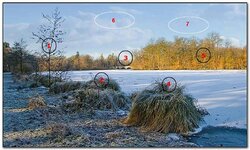
I'm presuming the image below is the sort of thing you are out to acheive?

virginia2.jpg
 
I'm presuming the image below is the sort of thing you are out to acheive?
Thanks MD, that's exactly what I'm trying to achieve.

I won't need to move the circles around - once they're on they can stay on. However I can put the numbers on as you described, but can't get the circles on. If there's an "elipse" icon my my screen, I'm buggered if I can find it. :blast If its not possible on my version I may just stick to just the numbers, but the circles are what I was after if possible, just like your photo.
 
You version must be different to mine, because mine doesn't have an elipse icon. I've used just the text icon and it's ok. Not as professional as I would have liked, but certainly good enough. :clap
 
Taf. I think you'll find v7 does have it. The ToolBar in V7 seems to looks slightly different to the CS3 one that I posted earlier but basically the same.

Have a look here http://www.hcgs.net/abweb/tutorial002.html

and here
http://www.hcgs.net/abweb/ps_marquee.html

He's right ya know, allow someone with a prehistoric version of Photoshop to help.

In the pallete right click on the rectangle (Rectangle tool) that is below the 'T' (Text tool) and up will come the all-important Ellipse tool.

Now refer back to man with crayons extraordinaire Mr Dabber's excellent tutorial :thumb
 
Cheers Andy. Always hard to know how thing look (and where to find them) if you are working with a different version.

Of course and had I read your instructions properly I'd have seen you said the marquee tool not the shape tool :blast

Taff you want top row, left hand side 'Rectangle Maquee tool' then right click for Ellipse Marquee tool....

I'll get my coat :judge
 
Taf. I think you'll find v7 does have it. The ToolBar in V7 seems to looks slightly different to the CS3 one that I posted earlier but basically the same.
That link worked. You obviously know your stuff MD. :thumb2

Taff have you thought about just using a felt tip pen:nenau
A felt tip?? :eek: You sound just like my wife Richard. :D The photo is to be included in a spreadsheet and e-mailed to others - so sadly "felt tips" aren't an option.
.... Taff you want top row, left hand side 'Rectangle Maquee tool' then right click for Ellipse Marquee tool....
Thanks Judge. I've now found the elipse tool using the link above. Even though I can mark one on the photo, as soon as I try and put another one on, I lose the first. :blast I'm a stubborn sod, so I'll have another crack at it tomorrow. It's nothing to do with work, so obviously I'm limited in how much time I can spend on it while in the office.
 
Thanks Judge. I've now found the elipse tool using the link above. Even though I can mark one on the photo, as soon as I try and put another one on, I lose the first. :blast I'm a stubborn sod, so I'll have another crack at it tomorrow. It's nothing to do with work, so obviously I'm limited in how much time I can spend on it while in the office.

You have saved your picture (jpg gif png bmp) as a photoshop file (psd) and added a new layer before you try and add your 2nd ellipse? And the repeat ad inf until you have all you want then either flatten the layers (in the layer menu) or save a copy back as a jpg.
 

Attachments

  • virginia2.jpg
    virginia2.jpg
    109.9 KB · Views: 48
I've now found the elipse tool using the link above. Even though I can mark one on the photo, as soon as I try and put another one on, I lose the first.


Once you have drawn a (one) circle with the Elipse Tool (on a New Layer) you must then go to the Edit>> Stroke stage. You can't draw multiple elipses with the Elipse Tool without doing something with them. All you have done using any of the Elipse Tools is make a selection (in whatever shape) of an area of your image.

If you draw one circle with the Tool then just draw another, Photoshop thinks you've changes your mind and that you are now selecting another area.

Hope that makes sense?
 
A felt tip?? :eek: You sound just like my wife Richard. :D The photo is to be included in a spreadsheet and e-mailed to others - so sadly "felt tips" aren't an option.


I'll consider that a bite Taff:aidan
 
At the risk of over-simplifying matters, why not do this in MS Paint? It's a doddle - I do it all the time!
 
....If you draw one circle with the Tool then just draw another, Photoshop thinks you've changes your mind and that you are now selecting another area.
Got it. Had another play and it worked a treat at the 3rd attempt. Thanks Master Dabber and Judge. :clap

I'll consider that a bite Taff. :aidan
:dabone

At the risk of over-simplifying matters, why not do this in MS Paint? It's a doddle - I do it all the time!
It probably would be a doddle if only I could find it. :D Sorted now anyway. :thumb2


Back
Top Bottom
