recommend me a monitor, and how to set up monitor/keyboard/mouse sharing

Berin

Well-known member
UKGSer Subscriber
Joined
May 29, 2006
Messages
7,679
Reaction score
3,470
Location
South Oxfordshire
I'm about to upgrade my 2019 iMac 27", and go back to a Mac mini with a separate monitor. I'm planning on the Mac mini M4 Pro, to cope with photo/video editing and also doing stuff with maps, and like the iMac, I'll run Parallels and a Windows VM.

So, monitor wise, what do you recommend? The iMac screen is "retina" which is, I believe, known outside Apple as 5k, so I'm looking for a 27" 5K monitor. This Samsung seems to fit the bill, especially as is has Thunderbolt, but are there any other contenders?

Separately, I have a MacBook Air, (Mac silicon), and a Dell U2724D 27.0" from work.

I'd like to see if I can set up, so I can use both monitors, and the Apple wireless keyboard and track pad, on either computer and switch easily between them. I used to do this years ago with wired kb and mouse, with KVM switch but with this now all wireless I'm not sure how to set it up. I know those 2 monitors are different resolution, but I assume the graphics cards will just manage that so I'm looking at 1 x 5120x2880 screen and 1 x 2560x1440 screen - am I correct in thinking that?
 
Regarding switching, for years I used to use an app called Teleport, that used to let me switch control between my laptop and desktop office Mac, just moving the mouse on the other screen, as you do with a single Mac with dual monitors and extended display.

You literally told it how the macs were next to each other (like you do in the monitor preferences) and you would switch by simply moving the mouse pointer in the computer screen you wanted to control.
Seamless.

The app was in development till recently, but I think it has been dropped a couple of years ago or so.

This was 20 years ago… I know this functionality has now been built in the OS, but haven’t tried it yet.

I don’t understand fully your second question, but if you are asking if the computer will handle different monitors of different sizes at the same time, the answer is: yes.
 
I have a dual monitor (plus laptop monitor) setup in my home office.

As mine is set up in 'work mode' 99% of the time I don't often need to swap computers but I achieve this by using two docking stations. One for the work PC and the other for any of my Mac laptops.

The docking stations then plug into the monitors using different inputs. One into the HDMI, the other goes into Display Port.

Swapping over therefore requires a manual button push on each monitor to select a different input but it's not really an issue for me as I do it so rarely.

I'm sure there are more elegant solutions but I'd 'picked up' the two docking stations from previous employers who only wanted their laptops back so it was a zero cost solution which works well enough for me.

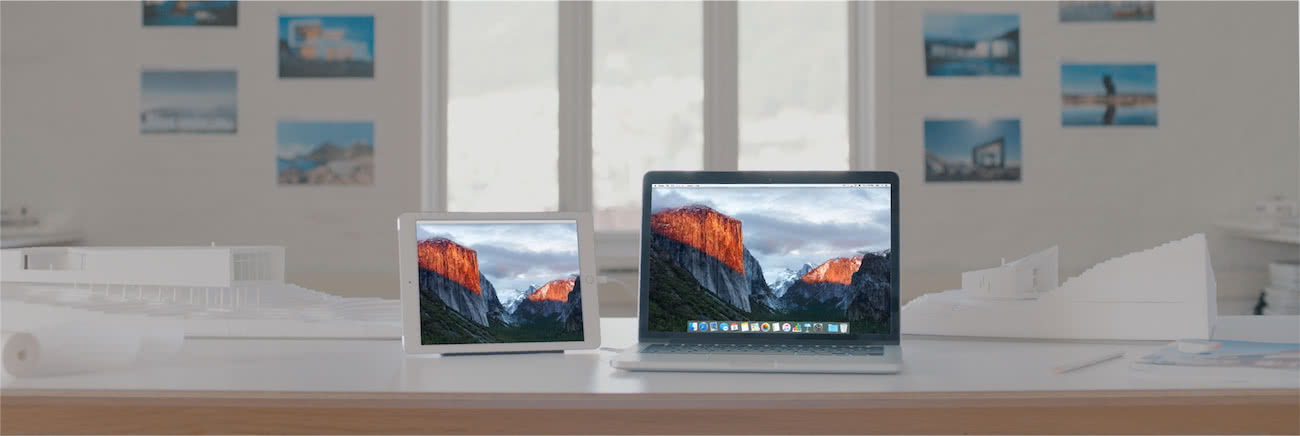
Back in the day I used to use my iPad as a second screen using what was a free app. I've just had a look and it's become a paid app but it has also expanded significantly and does a lot more. was the one I used but they seem to also have something called Reflector which might do the trick. Haven't really had a chance to read through it all properly but it looks like there are free trials so you can give it a go and see if it's worth having or not.
 
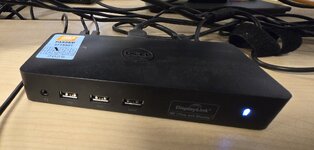
I have a laptop for the office and when I plug in by USB, it adds 2 other monitors, keyboard and mouse using this "Dell display link."

20251002_074304.jpg

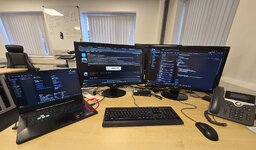
As you can see below all these displays, keyboard and mouse are connected by the single USB circled in red
20251002_074248.jpg

At home I have the same device but it also has a Cat 5 and power in it.
So when I plug the laptop in I get wired internet and it also charges my laptop through 1 single USB C cable.
I bought it second hand on Ebay for £50
 
have a laptop for the office and when I plug in by USB, it adds 2 other monitors, keyboard and mouse using this "Dell display link
This is the setup my last employer used on their hot desk areas. Just a single usb c connection from your personal laptop to get 2 full size screens, mouse, keyboard, network and charging.
 
yup. it works well

exactly what I have, but I've got two of them as I use different peripherals on my Mac than I do on my work machine (and because I had two docks already which I didn't pay for!)
 
Regarding switching, for years I used to use an app called Teleport, that used to let me switch control between my laptop and desktop office Mac, just moving the mouse on the other screen, as you do with a single Mac with dual monitors and extended display.

You literally told it how the macs were next to each other (like you do in the monitor preferences) and you would switch by simply moving the mouse pointer in the computer screen you wanted to control.
Seamless.

The app was in development till recently, but I think it has been dropped a couple of years ago or so.

This was 20 years ago… I know this functionality has now been built in the OS, but haven’t tried it yet.

I don’t understand fully your second question, but if you are asking if the computer will handle different monitors of different sizes at the same time, the answer is: yes.
I have a laptop for the office and when I plug in by USB, it adds 2 other monitors, keyboard and mouse using this "Dell display link."

View attachment 448247

As you can see below all these displays, keyboard and mouse are connected by the single USB circled in red
View attachment 448249

At home I have the same device but it also has a Cat 5 and power in it.
So when I plug the laptop in I get wired internet and it also charges my laptop through 1 single USB C cable.
I bought it second hand on Ebay for £50
That's kind of what I'm after. The ideal situation is:

Mac mini connects to the Samsung monitor, and the Dell monitor, either via some kind of dock or daisy chained. The Dell doesn't have thunderbolt, but the Samsung does. So I'm thinking Thunderbolt downstream to the Samsung, thenUSB C to Display port on the Dell. The Apple key board and mouse connect wirelessly to the Mac Mini. I think this will work

But then, how do I add the the MacBook Air to this set up, use the same wireless keyboard and mouse, and switch between the Air and the Mini - preferably with unplugging stuff.

With a wired keyboard and mouse, it would be as Barnoe's set up, everything plugged into a KVM box, but the keyboard and mouse don't plug into anything - they connect directly to each Mac
 
That's kind of what I'm after. The ideal situation is:

Mac mini connects to the Samsung monitor, and the Dell monitor, either via some kind of dock or daisy chained. The Dell doesn't have thunderbolt, but the Samsung does. So I'm thinking Thunderbolt downstream to the Samsung, thenUSB C to Display port on the Dell. The Apple key board and mouse connect wirelessly to the Mac Mini. I think this will work

But then, how do I add the the MacBook Air to this set up, use the same wireless keyboard and mouse, and switch between the Air and the Mini - preferably with unplugging stuff.

With a wired keyboard and mouse, it would be as Barnoe's set up, everything plugged into a KVM box, but the keyboard and mouse don't plug into anything - they connect directly to each Mac
You would plug the keyboard and mouse into the link box, along with power, Cat6, and monitors.
Then whatever PC/Mac plugs in accesses all those things.

At my home its like that but like sparkplug I have it configured different.

Everything plugged into the hub
But I have a laptop and a desktop.
Desktop monitor cables are display port cables
Laptop monitor cables are HDMI cables

I usually only use one computer at a time, but if I do switch both desktop and laptop on, I have to click the menu button on a monitor to switch between HDMI/Display Port to chose between laptop and desktop.
 
I have a laptop for the office and when I plug in by USB, it adds 2 other monitors, keyboard and mouse using this "Dell display link."

View attachment 448247

As you can see below all these displays, keyboard and mouse are connected by the single USB circled in red
View attachment 448249

At home I have the same device but it also has a Cat 5 and power in it.
So when I plug the laptop in I get wired internet and it also charges my laptop through 1 single USB C cable.
I bought it second hand on Ebay for £50
DisplayLink - who I used to work for until end of August. We designed the DisplayLink chips used in these docks. These types of docks will be around for some years to come as we had 80% of the World market for these video compression devices. However technology is moving on and with USB4 @ 80Gbps video compression is no longer needed so video quality will improve, especially for moving images.
 
Mac mini connects to the Samsung monitor, and the Dell monitor, either via some kind of dock or daisy chained. The Dell doesn't have thunderbolt, but the Samsung does. So I'm thinking Thunderbolt downstream to the Samsung, thenUSB C to Display port on the Dell. The Apple key board and mouse connect wirelessly to the Mac Mini. I think this will work

Yes you can connect multiple monitors.
I used multiple monitors on Macs for years, but before thunderbolt, so not 100% sure about Thunderbolt/USB daisy chain, but that should be possible (you can daisy chain via thunderbolt).

But then, how do I add the the MacBook Air to this set up, use the same wireless keyboard and mouse, and switch between the Air and the Mini - preferably with unplugging stuff.

So here's the thing:

You will have Mac mini with monitor 1 and 2.
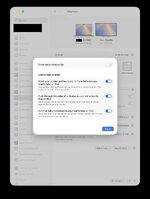
If you want to use the MacBook Air to extend your workspace, as an extra computer on its own, but able to control it with the same mouse/keyboard, so essentially you are seamlessly moving from one computer to another, Universal Control (built in MacOS) does the same stuff that Teleport (described in my earlier post) does.

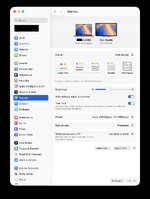
What you do is enable Universal Control under System Preferences > displays > advanced on both macs of course.
Then, when the two computers are nearby, still in the displays settings pane you can arrange their monitors next to each other, same way you would do when you have multiple monitors on a single Mac.
When you move the cursor across the two monitors belonging to different Macs, you see a little blob and it jumps on the other computer and you are now controlling that computer with same keyboard/mouse. You can drag files across to copy, clipboard is kept.

settings-a.jpg settings-b.jpg

That's my home desktop Mac and work laptop above.

It should work with iOS devices too (I never tried).

Catch is: you have to be logged in both Macs with the same iCloud account I think.

Logitech as a software that something similar (with Logi hardware) but, despite using Logitech mice and Keyboards, I never tried it.
 
Last edited:
On the other hand, if you want the Macs switching between controlling (as primary) monitors 1, 2, I think you'll be stuck with a physical switch.
 
Ah! Hello, you're still here :D

So I guess you're properly retired now or are you looking for pastures new after DisplayLink?
Yes still here, might do some design consultancy if fun stuff comes my way, but I have no need or desire to work full-time.
Synaptics (DisplayLink) still have the office on the Milton Road Science Park but not many people left now.
 
Yes you can connect multiple monitors.
I used multiple monitors on Macs for years, but before thunderbolt, so not 100% sure about Thunderbolt/USB daisy chain, but that should be possible (you can daisy chain via thunderbolt).


So here's the thing:

You will have Mac mini with monitor 1 and 2.
If you want to use the MacBook Air to extend your workspace, as an extra computer on its own, but able to control it with the same mouse/keyboard, so essentially you are seamlessly moving from one computer to another, Universal Control (built in MacOS) does the same stuff that Teleport (described in my earlier post) does.

What you do is enable Universal Control under System Preferences > displays > advanced on both macs of course.
Then, when the two computers are nearby, still in the displays settings pane you can arrange their monitors next to each other, same way you would do when you have multiple monitors on a single Mac.
When you move the cursor across the two monitors belonging to different Macs, you see a little blob and it jumps on the other computer and you are now controlling that computer with same keyboard/mouse. You can drag files across to copy, clipboard is kept.

View attachment 448466 View attachment 448467

That's my home desktop Mac and work laptop above.

It should work with iOS devices too (I never tried).

Catch is: you have to be logged in both Macs with the same iCloud account I think.

Logitech as a software that something similar (with Logi hardware) but, despite using Logitech mice and Keyboards, I never tried it.
That looks the jobby. I don’t think the KVM set up as described by others will work- seems to be mainly suitable for Windows and wired keyboard and mouse, not Mac’s and wireless peripherals.

I may have a snag in that the 2 macs will be on different iCloud accounts, however….
 
Ya, that should work and it's an elegant solution.

This one reason I hate AppleID/iCloud.
I caved in and added my AppleID account to my work Mac (we are allowed) because it is the only way I can connect my frigging Airpods to it.
It is a remotely monitored Mac, so I'm not super in love with the solution.

Teleport was an account free way of doing this, it just worked over local network and you needed the app on both computers.

As said above: Logitech does a similar software. Not sure if it works with non-Logitech hardware. Also, their software is generally shite sadly (I use it).

There is Barrier, that is multi-platform, might require some minimal configuration. But I never used it.
 
Last edited:
Just in case anyone is still looking at this, I solved the wireless mouse/keyboard sharing thing. I'm using an iMac, with a 27" monitor, and a MacBook Air with an external 27" monitor.

I installed Duet app on both computers. Duet allows sharing of Mac wireless mouse and keyboard, or to extend the screen to another Mac or an IOS device.

Crucially for me, as my MacBook is logged into a work Apple account, Duet works with both Macs logged into the same Duet account. Mac sharing requires both computer to be logged in with the same Apple ID.

It also means I can use my iPad Pro as a second screen for the MacBook when travelling

 
Nice one.
Yep the Apple ID-based system to enable some of the functionality has always been a massive pain IMHO.

In my current job I have a company MacBook. It's remotely managed. I resisted logging into it with my Apple ID, but then at some point I really wanted to use my Airpods with it + there is a number of small utilities that I purchased and needed to install.

At least you can still nuke the association between account and machine remotely in case of necessity.


Back
Top Bottom