Strange Broadband/WiFI problem - this will make you scratch your head

Press Windows key + R and type ncpa.cpl to open Network Connections.
Right-click your network adapter, select Properties,
highlight "Internet Protocol Version 4" in the list, and click the Properties button.
To specify servers, select Use the following DNS server addresses and enter the addresses of the ones you want to use

Google = 8.8.8.8 and 8.8.4.4

Apologies, Wessie beat me to it :D
 
Ok I picked the laptop up from the chap who has been trying to sort it out and it is now all ok, I can access all those websites without issue. When I settle the bill with him next week I'll ask what changes he made and share those as I know some of you will be keen to understand the solution.

Thanks everybody for your help and input.
 
As you were, got up this morning, woke the laptop up and the problem has returned, feck feck feck!
 
Another twist, I tried again about lunchtime and it all worked perfectly! What the hell is going on, none of this makes sense. It has been working perfectly since, let's see what happens tomorrow morning.
 
A certain member who may, or may not, be on someone's ignore list :D said:

RainbowFlag said:
As advised above, I suggest manually changing your DNS settings. Here are instructions from Google's AI, using google's free DNS.

AI Overview said:
To change your DNS to Google on Windows 11, go to Settings > Network & internet, click on your active network adapter (Wi-Fi or Ethernet), and select Edit under DNS server assignment. Change the setting to Manual, turn on IPv4, then enter 8.8.8.8 for the preferred DNS and 8.8.4.4 for the alternate. Finally, click Save to apply the changes.


Using the Settings App (Recommended)
Open Settings: Right-click the Windows icon (Start button) and select Settings.
Navigate to Network: In the Settings window, select Network & internet from the left-hand menu.

Select Your Connection: Choose your active network connection, either Wi-Fi or Ethernet.

Edit DNS Settings: Scroll down to find the "DNS server assignment" section and click the Edit button next to it.

Choose Manual: From the dropdown menu, select Manual and then toggle on the switch for IPv4.

Enter Google DNS: In the "Preferred DNS" field, enter 8.8.8.8. In the "Alternate DNS" field, enter 8.8.4.4.

Save: Click the Save button to apply the new DNS settings.
Using the Control Panel
Open Control Panel: Search for and open Control Panel from the Start menu.
Go to Network Settings: Click on Network and Internet and then Network and Sharing Center.

Change Adapter Settings: Select Change adapter settings from the left-hand menu.

Open Adapter Properties: Right-click on your active network adapter (Wi-Fi or Ethernet) and select Properties.

Configure TCP/IP: Select Internet Protocol Version 4 (TCP/IPv4) from the list and click Properties.

Enter DNS Addresses: Choose the option "Use the following DNS server addresses" and enter 8.8.8.8 for the preferred and 8.8.4.4 for the alternate DNS server addresses.

Apply Changes: Click OK on both windows to save and apply the settings.

Does sound very like DNS issues to me....
 
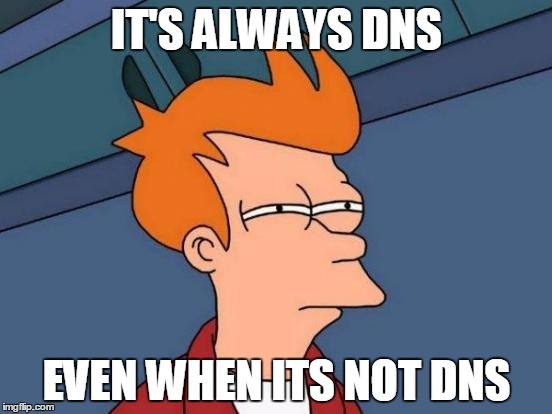
There's a reason why there are a ton of DNS memes.

151yay.jpg


It's because the problem is DNS. Always.
 
Well, it has been stable since I managed to connect on Sunday lunchtime, is this the end of the issue? Time will tell.
 
I have just added Proton VPN to my Firestick after BT/EE put an ISP blocker on it.
It worked instantly, and I have now added it to my PC's, giving full access back.
I have the free version, but it's so good I may just pay the 2 quid per month for the full package.

Recommended by a mate in IT security who says it works better than NORD.


:thumb You're most welcome!
 
Is it still working your Lordship?
Good question sir, it is still having moments of failure to connect. I went to Edinburgh for the weekend, took the laptop and it was fine connected to the Premier Inn WiFi. Got home Sunday evening, connected to home WiFi and accessed websites without issue. Yesterday morning I arise and overnight the laptop had lost the WiFi connection, I reconnected and the problem was back, sites such as BBC, Daily Telegraph "unreachable"! I tried a few new websites, I've decided to research my grandfather's military service in WW1 and every website I tried to access was "unreachable". Then a few hours later, they all connected, go figure and have been connected since.

Some websites such as UKGSer and YouTube are not affected so it is rather selective with regards to the websites it cannot reach.
 
If you want to be tracked, and you data sold to advertisers use all the normal ones

on the other hand if you dont ;)

1.1.1.1 for IPv4 and 2606:4700:4700::1111 for IPv6.

and as alternates

use 1.0.0.1 (IPv4) or 2606:4700:4700::1001 (IPv6).

Free and private, and they dont sell user data to advertisers

(y)
 
Shh... don't tell 'em Pike :D

8.8.8.8 = Evil Google

1.1.1.1 = Cloudflare a.k.a the good guys.

I use cloudflare as my backup but actually use Unbound to run my own recursive DNS server because...

...well, because I'm trying to grow my virginity back :D


Back
Top Bottom