So, I remeber recently on here when discussing this annoying U-turn behaviour alot of us are experiencing where it seems to want us to constantly around to satisfy some sort of twisted logic the XT has, someone commented (possibly Wapping) that there is a known "fix" that it only affects Imported Trips and not Saved Trips, which are those created on the XT itself and if you edit the route on the XT and then save it, it becomes a Saved Trip and this seems to remedy it. Personally I find editing routes on the XT itself a little clunky so I did some digging and found a way to fix this issue, although not permanently unfortunately. I'll link the original thread on another forum at the bottom but it jumps around a bit and is a little long winded, but I tested this out yesterday and it worked flawlessly, although I haven't had a chance to put it into practise out on the road yet.
I take zero credit for the fix, I did not discover or create it, but I have tried to shorten the steps to be a little more friendly.
This works on both Windows PC's and Mac's, the only difference being on the Mac you would use the "Android File Transfer" app to copy the required files off/back on to the XT. In short, we need to copy the trip files off, upload them to a website which "fixes" them and then put them back on the XT.
WARNING - This fix involved accessing the "System" area of your XT and moving files around, if done correctly the risk is low, but, you have been warned.
STEP 1
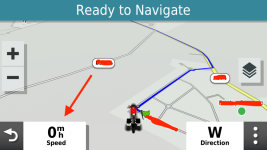
We need to enable access to the SYSTEM folder on the XT, which by default is not visible. To do this you should be on the Map View on your XT, once there press on the Speed tile:
View attachment 283606
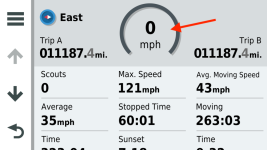
Then on the next screen press and hold on the Speedo icon in the middle for at least 5 seconds:
View attachment 283607
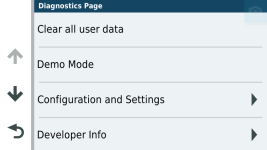
Then you'll see this menu:
View attachment 283608
Go into "
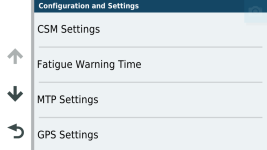
Configuration and Settings" and you'll get this screen:
View attachment 283609\
Then into "
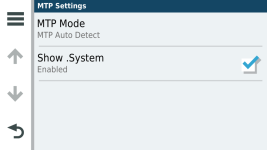
MTP Settings":
View attachment 283610
Make sure the "
Show .System" option is enabled.
STEP 2
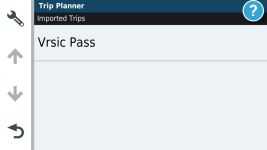
Now go ahead and import your routes as normal, for instance via the Garmin Drive app etc. Obviously they will then show as an Imported Trip:
View attachment 283611
Now we need to get the file off the XT, unfortunately this won't work with the original .GPX file as Garmin changes the file to a .TRIP file.
Connect the XT to your computer and wait for it to show in the filesystem. As above, Mac users will need to use Android File Transfer but the steps are the same.
Browse to the
/.System/Trips folder on the XT and copy the relevant .TRIP file onto your machine. Sadly the XT names them random numbers so I just did all of them at once.
STEP 3
This is the step where we convert the file, so with the .TRIP file you have on your computer, go to this website:
https://www.javawa.nl/triprepair.html
Use the
Upload Trip File button and then the
Download Trip File button to convert and download the new version of the file. The file will be the same name but with _MOD so 12345.trip becomes 12345_mod.trip.
STEP 4
Now all we need to do is get the file back onto the XT, which I won't list out as it's exact opposite of copying it off. But you need to make sure you delete the original version of the file, or the XT will get confused.
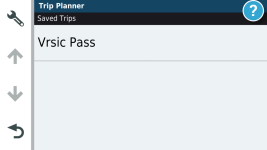
Simply copy the file back (making sure you remove the original file) and then once booted back up the trip will now show as a Saved Trip:
View attachment 283612
I know this all looks a bit long winded, but in essence once Step 1 is done it never has to be done again, the rest is just copy the file off, upload/download, copy back.
Anyway, as said I didn't create this nor do take any responsibility for the online tool for changing the trips. It seems that this method has worked pretty much perfectly for everyone who's used it, so I'll be curious to find out properly myself once the weather improves.
Here is the original link I found:
https://www.zumouserforums.co.uk/viewtopic.php?t=2301