Hi MigSel:
Your comments are very correct, and I understand exactly what you are saying. I think Garmin decided to release the drivers in a new package with an installer because feedback from the tech support department indicated that many end users were not familiar with the process to manually update (register) a driver. A review of some recent threads here on the board tends to confirm that...
Mutley: When you get your new GPSR, it will come with CDs that contain the cartography (CityNavigator Europe 6). When you install the cartography on your PC, the installer engine also automatically installs both the MapSource program (executable) needed to view and manipulate the maps, and the drivers needed to communicate with
any Garmin USB or serial device.
However - the version of the MapSource program and drivers that come on the CD may not be the most recent release. So, what you can do is this: AFTER you have installed the cartography, MapSource application, and drivers from the CD (this will all be done automatically when you stuff the CD in the computer), go to the
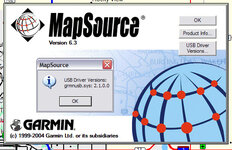
Garmin Updates and Downloads page and see if the version of MapSource available for download there (6.3 as of today) has a higher version number that the version that was installed on your computer, from the CD. You can check the version number of what you have on your computer by starting MapSource, going to the HELP menu, and selecting "About MapSource" from the drop-down menu. You will then see a screen like the photo below - the version number is just below the word "MapSource". If you then click on the button "USB Driver Versions", you will get a little pop-up message box (shown in the photo below) listing the version number of the drivers.
To update the
MapSource application (not the maps themselves, but the program that displays them on your computer), download the most recent version of MapSource from the previously mentioned web page. It has a fully automated installer, so it's pretty simple.
To update the
USB Drivers, go to the same Garmin update page, and click on the model number of your GPSR (SP 2610). You will then be taken to a page that offers you two downloads - one for the USB drivers, and one for the product (system) software that makes your GPSR itself work. Download the newer USB drivers, if you need to, and double click on them to install them.
It is probable that your GPSR will have the most recent product (system) software, but your MapSource program and drivers will be slightly out of date. This is understandable - the MapSource program and drivers are supplied on the CD, and the CD is manufactured (printed) in one huge batch once a year, when the cartography is updated. The product (system) software for the GPSR itself is loaded into the GPSR at the factory in Taiwan just before the GPSR is shipped out the door, so there is a pretty good chance it will be up to date, assuming your retailer has fresh stock. Because GPSRs are expensive for a stockist to leave on the shelf, they almost always have fresh stock.
Last point: Shutdown and restart your computer between each software installation. In other words, load the CD's, after that installation is finished, shutdown and restart. Install the updated MapSource program, then shutdown and restart. Install the new driver package, then shutdown and restart.
PanEuropean



 .
.


 coz his phone will be burning hot




