


So I did do a video on this which is below, but if you would rather not listen to me drone on I'll explain the problem and the way I've resolved it below.
One problem I had with the first CarPlay unit I bought and then initially with the Carpuride is that by default iPhones (and I presume Android phones) when using CarPlay/AA not only send the screen mirroring over to whatever device they are connected to, but also the audio. This is why most CarPlay screens for bikes have a secondary bluetooth channel to pair your headset to so that the phone passes the audio to the CarPlay screen and then it sends the audio over to your headset via the secondary channel. This can, and does cause people alot of issues and I've experienced them myself.
1. I've had it where the audio is very quiet despite being on full on phone/CarPlay screen and headset
2. Laggy audio
3. Slow audio like someone has slowed the playback down to a quarter speed
4. People saying they can't hear me properly on a phone call
5. Siri not working via voice activation
6. (This may be just a Cardo issue) When I power off my headset it doesn't respond and it seems to keep itself alive for several minutes after and then just switches off. I don't get this issue with the headset paired to anything else.
7. Music playing automatically when connected to the unit even if it wasn't playing previously.
Carpuride and I think possibly Chigee have added an option where you can stop the unit from accepting the audio from your phone, which means you can still have your headset paired directly to your phone, SIri works and all you get on the CarPlay screen is the screen mirroring and controls. Everything works flawlessly at least in my case with the Carpuride. So firstly I'd recommend if you have a CarPlay screen and it DOES have this option to not send audio to the unit, I'd personally recommend it rather than the alternative.
NOTE - If the above statement is applicable to you then you need not read any further unless you want to also have your phone paired to the TFT or some other device, and have audio issues.
But, some CarPlay screens don't have this option. I tested one recently that got sent to me and it forced me to pair my headset to it and I encountered all of the above issues again and that got me wondering if there is a workaround using the Apple Shortcuts app which I'd heard someone recently say might be a possibility and it turned out to be quite a simple thing to fix. It's also allowed me to have my phone still connected to the TFT just so I get the ride recording element in the Connected app which I know isn't necessary but if you pair to the TFT it will also try to grab the audio output.
In the Apple Shortcuts app you just need to create a new shortcut with the following options.
1. Open Shortcuts app
2. Click the + icon in the top right corner of the screen
3. In the "Search Actions" box type in "Wait" and choose this from the list of option
4. Change the value for this action to 3 seconds (it does work without this Wait stage but I left it in just to be sure)
5. Now search for another action called "Change Playback Destination" and add it to your shortcut
6. It will default to iPhone as the destination but you need to make sure your headset is paired to your phone AND switched on/connected
7. Click the iPhone option and you'll see a list of destinations and your headset should be one of them, choose it
8. Search for a final action (optional) by searching for "Pause" and pick the "Play/Pause" action to add it
9. It will default to "Play/Pause" for the toggle and "iPhone" for the device. You can leave the device set to iPhone but click the first toggle and change it to just "Pause" rather than "Play/Pause"
You can now rename and save this shortcut. It should look like this (your headset name will be different):
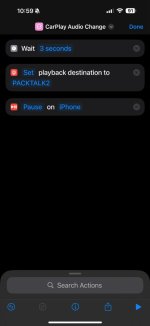
You can test it's worked by powering up your headset, waiting for it to connect and then you'll see the audio output is your headset, then power up the CarPlay screen and you'll then see the audio source change to "CarPlay and if you were to play any music you'd hear nothing. If you then manually run this shortcut by tapping on it you should get the audio source changed to be your headset and audio will be restored.
Assuming this works, we need to make sure this occurs automatically as noone wants to be remembering to do this everytime they ride or stop for fuel etc so in the bottom of the Shortcuts app there is another section called "Automation", head over to this tab and again click the + symbol to create a new Automation. Once you have you need to do the following:
1. In the Search bar search for "CarPlay" and select this option
2. In the "When" section choose "Connects" and choose "Run Immediately" (I also tick Notify When Run so I know it's working)
3. Click "Next" and now in the list of "My Shortcuts" choose the shortcut you just made and this will then appear in the "Do" section
It should then look something like this:
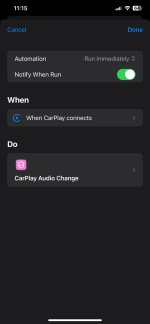
This will then trigger everytime your phone connects to the CarPlay screen and restores audio back to your headset. I've been using this for months and it triggers and runs 100% of the time. Obviously if your headset isn't on/connected then it won't work. Someone commented to me saying that they use CarPlay in their car and they don't want this messing up their audio but the beauty is it WILL trigger when connected to any CarPlay unit, but, if you are in the car your headset won't be connected so the automation will try and fail to run so there are no issues there. I have CarPlay in my car and it's unaffected by this.
As a little bonus if you also want to have your phone paired to the bike so you can record your rides and see the speed limits on the dash, you'll also encounter the issue with the TFT wanting to grab the audio, but for this you just need to create a second automation and instead of the "When" section being CarPlay, search for "Bluetooth" and set so that when it connects to the BMW TFT it runs the same shortcut. The TFT will need to be powered up and connected to show in the list but in essence it'll look like this:
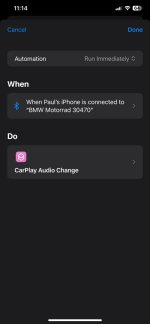
So what happens when I leave the house is I turn my headset on, it connects to my phone, I power up the bike, the CarPlay screen fires up, connects and grabs the audio,, the automation triggers and sets the audio back to my headset, then eventually once the TFT has woken up its bluetooth and connected it triggers again and I get perfect audio. Sounds like a faff but I promise it's a 10 minute job and once done it never has to be done again unless you change headset or bike.
I don't have an Android phone to try this out on but I'm pretty sure with something like "Tasker" or "MacroDroid" it's possible and I think both are on the Google Play Store.
One problem I had with the first CarPlay unit I bought and then initially with the Carpuride is that by default iPhones (and I presume Android phones) when using CarPlay/AA not only send the screen mirroring over to whatever device they are connected to, but also the audio. This is why most CarPlay screens for bikes have a secondary bluetooth channel to pair your headset to so that the phone passes the audio to the CarPlay screen and then it sends the audio over to your headset via the secondary channel. This can, and does cause people alot of issues and I've experienced them myself.
1. I've had it where the audio is very quiet despite being on full on phone/CarPlay screen and headset
2. Laggy audio
3. Slow audio like someone has slowed the playback down to a quarter speed
4. People saying they can't hear me properly on a phone call
5. Siri not working via voice activation
6. (This may be just a Cardo issue) When I power off my headset it doesn't respond and it seems to keep itself alive for several minutes after and then just switches off. I don't get this issue with the headset paired to anything else.
7. Music playing automatically when connected to the unit even if it wasn't playing previously.
Carpuride and I think possibly Chigee have added an option where you can stop the unit from accepting the audio from your phone, which means you can still have your headset paired directly to your phone, SIri works and all you get on the CarPlay screen is the screen mirroring and controls. Everything works flawlessly at least in my case with the Carpuride. So firstly I'd recommend if you have a CarPlay screen and it DOES have this option to not send audio to the unit, I'd personally recommend it rather than the alternative.
NOTE - If the above statement is applicable to you then you need not read any further unless you want to also have your phone paired to the TFT or some other device, and have audio issues.
But, some CarPlay screens don't have this option. I tested one recently that got sent to me and it forced me to pair my headset to it and I encountered all of the above issues again and that got me wondering if there is a workaround using the Apple Shortcuts app which I'd heard someone recently say might be a possibility and it turned out to be quite a simple thing to fix. It's also allowed me to have my phone still connected to the TFT just so I get the ride recording element in the Connected app which I know isn't necessary but if you pair to the TFT it will also try to grab the audio output.
In the Apple Shortcuts app you just need to create a new shortcut with the following options.
1. Open Shortcuts app
2. Click the + icon in the top right corner of the screen
3. In the "Search Actions" box type in "Wait" and choose this from the list of option
4. Change the value for this action to 3 seconds (it does work without this Wait stage but I left it in just to be sure)
5. Now search for another action called "Change Playback Destination" and add it to your shortcut
6. It will default to iPhone as the destination but you need to make sure your headset is paired to your phone AND switched on/connected
7. Click the iPhone option and you'll see a list of destinations and your headset should be one of them, choose it
8. Search for a final action (optional) by searching for "Pause" and pick the "Play/Pause" action to add it
9. It will default to "Play/Pause" for the toggle and "iPhone" for the device. You can leave the device set to iPhone but click the first toggle and change it to just "Pause" rather than "Play/Pause"
You can now rename and save this shortcut. It should look like this (your headset name will be different):
You can test it's worked by powering up your headset, waiting for it to connect and then you'll see the audio output is your headset, then power up the CarPlay screen and you'll then see the audio source change to "CarPlay and if you were to play any music you'd hear nothing. If you then manually run this shortcut by tapping on it you should get the audio source changed to be your headset and audio will be restored.
Assuming this works, we need to make sure this occurs automatically as noone wants to be remembering to do this everytime they ride or stop for fuel etc so in the bottom of the Shortcuts app there is another section called "Automation", head over to this tab and again click the + symbol to create a new Automation. Once you have you need to do the following:
1. In the Search bar search for "CarPlay" and select this option
2. In the "When" section choose "Connects" and choose "Run Immediately" (I also tick Notify When Run so I know it's working)
3. Click "Next" and now in the list of "My Shortcuts" choose the shortcut you just made and this will then appear in the "Do" section
It should then look something like this:
This will then trigger everytime your phone connects to the CarPlay screen and restores audio back to your headset. I've been using this for months and it triggers and runs 100% of the time. Obviously if your headset isn't on/connected then it won't work. Someone commented to me saying that they use CarPlay in their car and they don't want this messing up their audio but the beauty is it WILL trigger when connected to any CarPlay unit, but, if you are in the car your headset won't be connected so the automation will try and fail to run so there are no issues there. I have CarPlay in my car and it's unaffected by this.
As a little bonus if you also want to have your phone paired to the bike so you can record your rides and see the speed limits on the dash, you'll also encounter the issue with the TFT wanting to grab the audio, but for this you just need to create a second automation and instead of the "When" section being CarPlay, search for "Bluetooth" and set so that when it connects to the BMW TFT it runs the same shortcut. The TFT will need to be powered up and connected to show in the list but in essence it'll look like this:
So what happens when I leave the house is I turn my headset on, it connects to my phone, I power up the bike, the CarPlay screen fires up, connects and grabs the audio,, the automation triggers and sets the audio back to my headset, then eventually once the TFT has woken up its bluetooth and connected it triggers again and I get perfect audio. Sounds like a faff but I promise it's a 10 minute job and once done it never has to be done again unless you change headset or bike.
I don't have an Android phone to try this out on but I'm pretty sure with something like "Tasker" or "MacroDroid" it's possible and I think both are on the Google Play Store.


 )
)


