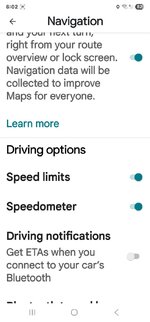
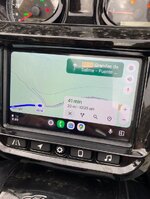
Yes, the Google Maps app within the Android Auto environment can include a speedometer, but it is not always active or available for all users and must be enabled in the app's settings under "Navigation settings" or "Driving options". While Google has been rolling out the feature, some users still experience issues with it disappearing when the app is connected to their car's head unit. Alternatively, other navigation apps like Waze are known to display speedometers reliably within Android Auto.
How to check and enable the speedometer in Google Maps:
Open: the Google Maps app on your Android device.
Tap: the menu icon (three stacked lines) or your profile icon.
Select: Settings.
Choose: Navigation settings.
Look: for the "Driving options" section and turn the speedometer on.
Why you might not see it:
Feature Rollout: The speedometer feature is still being rolled out, so it may not be available yet.
Location: In some regions, the feature may not be available.
App vs. Head Unit: Sometimes, the speedometer appears fine on your phone but disappears when the app is displayed on your car's head unit through Android Auto.
Route Dependent: The speedometer might only show when you are actively using a route.
Alternative apps:
Waze:
This is a popular navigation app that consistently displays a speedometer on your car's screen when used with Android Auto.
I'll use a mix. GM for multi-point trips and Waze for simple point to point, no waypoints. Also when there is no navigation required, just to see speed, traffic, cameras etc.
I find I only get the speed display IF I've got a route in with the app and it's providing directions. If I just have the screen on, I don't see the speed.