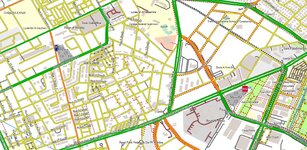
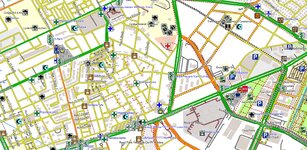
How do I load an OSM with Topo onto my XT

dommiek

Active member
UKGSer Subscriber
Joined
Mar 7, 2009
Messages
189
Reaction score
45
Location
the MK riviera
Is there an easy way to load on OSM map of Morocco (ideally with contour lines) onto my Zumo XT.
I'm not very good with IT and mapping, it seems awfully complicated and the more I read into this the more confused i'm getting.
 
This thread seems to have the answers you need;

 
Is there an easy way to load on OSM map of Morocco (ideally with contour lines) onto my Zumo XT.

I have UK topo on my XT.
Transferred the file using a specific software (on Mac).
Let me see if I can find the thread.


Update, old threads with random content in:

Essentially, if you have the maps in the correct format, you can add them to the XT via USB.
On Mac I use a software called Commander One. On Windows/PC it should be simpler (XT is an Android device) and should work just connecting the device.

After copying the map in the correct location on the Zumo, you'll see them available in the preferences where you can select what map files are available.

I strongly suggest to have only the topo map activated when using that or going offroad and only have the CN maps active when going on the road and be sure to deactivate the topo, as having the topo active alongside with the CN when on the road (and using standard routing) can create problems.
One thing to keep an eye is: if speed limits are not shown while routing with standard CN maps, it means that the topo map is still active.

 
Last edited:
I have UK topo on my XT.
Transferred the file using a specific software (on Mac).
Let me see if I can find the thread.


Update, old threads with random content in:

Essentially, if you have the maps in the correct format, you can add them to the XT via USB.
On Mac I use a software called Commander One. On Windows/PC it should be simpler (XT is an Android device) and should work just connecting the device.

After copying the map in the correct location on the Zumo, you'll see them available in the preferences where you can select what map files are available.

I strongly suggest to have only the topo map activated when using that or going offroad and only have the CN maps active when going on the road and be sure to deactivate the topo, as having the topo active alongside with the CN when on the road (and using standard routing) can create problems.
One thing to keep an eye is: if speed limits are not shown while routing with standard CN maps, it means that the topo map is still active.
Or if you have windows ise Javawa - dead easy
 
I think you can also use Garmin Map Manager, useful if you want to load only part of a map
 
I strongly suggest to have only the topo map activated when using that or going offroad and only have the CN maps active when going on the road and be sure to deactivate the topo, as having the topo active alongside with the CN when on the road (and using standard routing) can create problems.

In short, never have two different sets of maps running simultaneously.
 
There is a bit of an explanation here.


Very long story short. You need Garminised OSM maps on an SD card that can be read by your XT. (DO NOT TRY TO LOAD THE MAPS DIRECTLY ONTO YOUR XT) The sources of mapping are outlined here.

https://wiki.openstreetmap.org/wiki/OSM_Map_On_Garmin/Download.

The maps can be loaded onto an SD card via Mapsource or Basecamp into a folder called “Garmin” in the root directory of the card with the file name gmapsupp.

I would strongly suggest that you look through some of the map sources on the WIKI and chose a mapset that has the basemap and contours/Topo information included together. Some mapsets have one, or the other, and you "Can" manage both on the device but it would be much simpler to have the map info you need all on one mapset.
 
https://alternativaslibres.org/ Maps include a basemap for Morocco and a tool to combine the topo maps with the basemap.

Talkytoaster can do do maps for your use case (chargeable) and can do custom maps and installations (at a cost) for customers in the UK. But it looks like you aren't in the UK.
 
An alternative would be to use an old Phone and OSMand+ It is great for tracks and offroad routes you can download the contours to go with your map etc. However, the choices and customisation can be bewildering and it has a fairly steep learning curve. I like it :D but I'm a sad sack that likes playing with maps both paper and digital :geek:
 
Thanks for you replies, I'll try my best.....although there seems to be no deffinate simple answer :unsure:
 
I'm trying.
Having issue to get the XT connect via USB to any of my Macs.

Haven't been used for the last 8 months at least... I'll leave it connected and running in the hope that it would appear as a volume over dinner :D
 
Thanks everyone for the help, we have managed to install OSM and Contoured maps on the XT....instructions below for anyone interested.

1. Download the relevant maps from here - https://alternativaslibres.org/en/downloads.php#close
1a. Connect the Garmin XT to the PC using a USB cable
2. The downloaded ZIP file should be in your downloads folder. Extract the ZIP file and copy the "Disc Image File" to the Garmin folder on the external SD Card.
3. Disconnect the XT and start it up, you should have a message about updated maps....
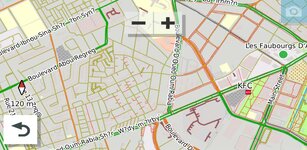
4. Check the maps look ok.
 
Good man. You can make your XT believe that its somewhere else and simulate the routes that you want to do to make sure everything is tickety boo. How to do that is covered in this thread.


(y)
 
Thanks everyone for the help, we have managed to install OSM and Contoured maps on the XT....instructions below for anyone interested.

1. Download the relevant maps from here - https://alternativaslibres.org/en/downloads.php#close
1a. Connect the Garmin XT to the PC using a USB cable
2. The downloaded ZIP file should be in your downloads folder. Extract the ZIP file and copy the "Disc Image File" to the Garmin folder on the external SD Card.
3. Disconnect the XT and start it up, you should have a message about updated maps....
4. Check the maps look ok.
:nenau that's how it has always been done but FWIW a step is missing for windows users-
RIGHT click the downloaded file and tick 'UNLOCK' before extracting. Windows can throw a dummy now and then which can mess up the extraction- Takes just a few seconds to do.


Back
Top Bottom