POI/ shaping points/waypoints info

stratblue

genoQian
UKGSer Subscriber
Joined
May 24, 2015
Messages
241
Reaction score
36
Location
My very own recording studio! (South Wales).
Hi there.

I'm creating a route in Basecamp 4.8.13 and sending it to the Zumo 590LM. When I open the route in trip planner I get a choice of two places to navigate to, the first and last it seems. I've had some 'issues' with this whole system and in a last ditch attempt to utilise it fully I'd like to call the first point 'start' and the last point somewhat predictably 'end' to avoid any on the road befuddlement frustrations as I've had before... However even if I alter the name and the comment of the start point, when I see it in trip planner it has reverted, can someone enlighten me as to how to do this in Basecamp rather than the Zumo?

Thanks.
 
Last edited:

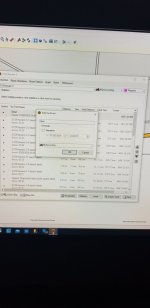
If you open up the route in basecamp then double click on the route name on the left hand side and it should bring up a control box with several tabs. Make sure you are on the first properties tab and you should see all the waypoints / shaping points you've used. Double click on the first point and it should bring up a 'Edit via point' box. Once in there you can rename that point as 'start'. Do the same with the last one.
Hopefully should work.
I'm not sure what version i'm on but probably a standard feature on many versions.
 
If you open up the route in basecamp then double click on the route name on the left hand side and it should bring up a control box with several tabs. Make sure you are on the first properties tab and you should see all the waypoints / shaping points you've used. Double click on the first point and it should bring up a 'Edit via point' box. Once in there you can rename that point as 'start'. Do the same with the last one.
Hopefully should work.
I'm not sure what version i'm on but probably a standard feature on many versions.
Hey, thanks for the reply, I've already tried that, that's where you change the name and comment for the points unless I have misunderstood.
 
Hey, thanks for the reply, I've already tried that, that's where you change the name and comment for the points unless I have misunderstood.
It certainly works for me. As above i just went through the above sequences, renamed it and once i downloaded it onto the sat nav thats exactly how it appeared.

See the photo's, is that what you want to see on the Sat nav ?

The other photo is the edit via box i used, if youv'e done all this and its not worked then i'm not sure what it is.
 

Attachments

  • 20240801_231653.jpg
    20240801_231653.jpg
    29.2 KB · Views: 7
  • 20240801_231732.jpg
    20240801_231732.jpg
    72 KB · Views: 7
Once you have cracked the renaming issue, here’s one hopefully helpful tip.

At the moment, you are creating a route with just two known points: ‘Beginning’ and ‘End’. As you observed, on firing up, the device gives you the choice of whether to navigate to the ‘Beginning’ or ‘End’. Depending on the route and your preference settings, choosing either might alter the route. This might account for your:

I've had some 'issues' with this whole system….

To possibly help remove these ‘issues’ try the following:

1. About a mile or so down the road from your start point, insert a viapoint and give it a name, for example ‘Go’ or any name that’ll make sense to you.

2. The named viapoint will then appear in the list of destinations when you fire the device up. In other words, you’ll now see not two but three: Beginning…. Go….. End

3. Select ‘Go’

The device will make a little recalculation to take you from wherever you are standing to ‘Go’ and thereafter the device will run the route through to End, with no more intervention from you.

One more tip:

Modern devices do not need to told ‘Beginning’. They know, with pinpoint accuracy, exactly where they are. You can dispense with ‘Beginning’ entirely and create your route with a starting point at ‘Go’, a mile or so down the road. On firing up the device, you’ll then be presented with the two choices ‘Go’ and ‘End’. Choose ‘Go’ and all will be well.


Back
Top Bottom