

You are using an out of date browser. It may not display this or other websites correctly.
You should upgrade or use an alternative browser.
You should upgrade or use an alternative browser.
Snaf’s questions regarding OSM Adventure Riding Maps for Garmin
- Thread starter Snaf
- Start date
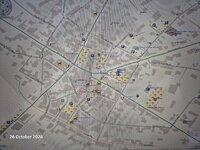
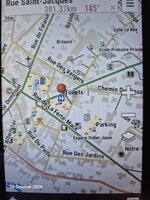
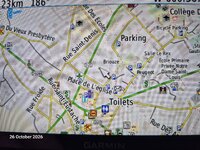
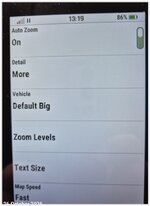

From its painful birth and subsequent teething difficulties, this thread is now progressing well.


Just to clarify for those who may be reading this and thinking it's all getting complicated.
The Advosm maps are ready made and only need to be downloaded into your Garmin folder and you are good to go.
You can't really get much simpler and cheaper- Thanks to AdvOsm on here who really does deserve a large pat on the back.
The Advosm maps are ready made and only need to be downloaded into your Garmin folder and you are good to go.
You can't really get much simpler and cheaper- Thanks to AdvOsm on here who really does deserve a large pat on the back.
Last edited:

Indeed it's not complicated but you can't just download and pop it in your "Garmin" folder on a PC without full user admin rights in program files which is not recommended.Just to clarify for those who may be reading this and thinking it's all getting complicated.
The Advosm maps are ready made and only need to be downloaded into your Garmin folder and you are good to go.
You can't really get much simpler and cheaper- Thanks to AdvOsm on here who really does deserve a large pat on the back.
My experiance is that you can either save it to a Garmin device, an SDcard/flash drive attached to the pc/laptop or a flash drive or a virtual machine/SDcard on the the PC/laptop. A flash drive or SDcard will hold more maps than you'll ever need. Happy to be corrected if that's wrong.
Any complication is me experimenting around the margins looking to improve what I already have rather than adopt a new model, there's another thread for those looking for the simple life.
Snaf free ADVOSM only thread
At the risk of ruffling a feather- or three to be clear- to be clear 
After downloading any map from the AdvOsm site:

After downloading any map from the AdvOsm site:
- You can just copy the map in the Garmin folder on a micro sd card- this does not require a map installation- BC will see it and load it if the sd card reader is plugged in- simplest method.
- You can save the map in the Garmin folder in your Garmin sat nav- either in its memory or on a micro sd card.
- You can install the map on a windows PC / Laptop / Tablet is you so chose but that takes more time and takes up PC space.
You've probably already told me how to do this but how do you save a downloaded ADVOSM img file to a PC hard drive in a way that allows Basecamp to access it. Space is not a problem, I have circa 505gb of mapping data and space is space whatever device it's held on.
- You can install the map on a windows PC / Laptop / Tablet is you so chose but that takes more time and takes up PC space.
OK here goes- you're wearing my fingers down you know!You've probably already told me how to do this but how do you save a downloaded ADVOSM img file to a PC hard drive in a way that allows Basecamp to access it. Space is not a problem, I have circa 505gb of mapping data and space is space whatever device it's held on.
You go here
Scroll down to the word Download Maps and click (link here)
There are pictures explaining all the various regions/maps
For the Garmin which you say you gave the 66s I think it was do NOT download the HD maps as these will not display correctly.
Decide if you want the map containing contour data or not
Once you have chosen your map, look to the right for the down icon - which offers you a choice of copy link, share or download and choose
Once the map has downloaded it should be in your downloads folder.
As windows likes for some unknown reason to block files, I always RIGHT click once on the map and chose the 'unblock' option and apply (found in properties)
Then I either rename the map with a name which suits me better or just copy and paste it in the Garmin folder or SD card
Job done.
To speed things up a download manager helps.
Over to you for more experimenting!
Any more requires private consulting with incurring charges!

Last edited:
Well I've tried your way but unless I have the Garmin or an SD card plugged in to the pc Basecamp doesn't see any ADVOSM maps but does see others in the folder.
Not a problem as it works my way.
I'll not trouble you again.
Not a problem as it works my way.
I'll not trouble you again.
"unless I have the Garmin or an SD card plugged in to the pc Basecamp doesn't see any ADVOSM map.
Of course you must have either or in your PC!
How else can BC know you have the AdvOsm map???
It needs to access and read thevGarmin folder.
If you have not placed the maps eitheron the sd card OR with your sat nav connected BC will not find anything.
I suggest you use a different sd card with ONLY a Garmin folder in the root and ONLY the AdvOsm maps in the garmin folder.
If that works, then there is a conflicting other map of yours.
If you still don't see it in BC you will need to change a code in the map but thats a different topic
I'm not sure if you have a win11 pc
You say 'Not a problem as it works my way' yet you do not elabote what that is which does not give me any clues.
And if it works your way, why need a 'how to download' which I have previously listed? #28 as that works as described to get the maps.
Something doesn't quite add up here Snaf.
Anyways, for the benefit of others
Follow the download instructions from AdvOsm main page or my post#28.
Of course you must have either or in your PC!
How else can BC know you have the AdvOsm map???
It needs to access and read thevGarmin folder.
If you have not placed the maps eitheron the sd card OR with your sat nav connected BC will not find anything.
I suggest you use a different sd card with ONLY a Garmin folder in the root and ONLY the AdvOsm maps in the garmin folder.
If that works, then there is a conflicting other map of yours.
If you still don't see it in BC you will need to change a code in the map but thats a different topic
I'm not sure if you have a win11 pc
You say 'Not a problem as it works my way' yet you do not elabote what that is which does not give me any clues.
And if it works your way, why need a 'how to download' which I have previously listed? #28 as that works as described to get the maps.
Something doesn't quite add up here Snaf.
Anyways, for the benefit of others
Follow the download instructions from AdvOsm main page or my post#28.
Last edited:
And as a last 'hurrah' for @Snaf
If you do not want to have either an sd card or your satnav plugged into your PC, then you will need to INSTALL the map onto your PC.
IMHO pointless as with every map update, you'll need to un-install it then re-install it again.
...And a small 'thank you' would have been appreciated. Never mind.
And with that, I'm out.
If you do not want to have either an sd card or your satnav plugged into your PC, then you will need to INSTALL the map onto your PC.
IMHO pointless as with every map update, you'll need to un-install it then re-install it again.
...And a small 'thank you' would have been appreciated. Never mind.
And with that, I'm out.

Similar threads

- Replies
- 43
- Views
- 1,317
