Taff said:
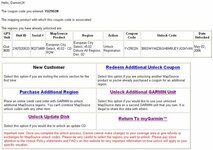
The updated maps (Version 8 of City Navigator now from memory) is available from Garmin. The maps are free, provided you registered the unit after a set time - again AFAIC that was 1st Jan 2006. Personally, I wouldn't waste time ringing Garmin, as I've always had a response to the e-mails I've sent them. In fact I don't think I've ever managed to get through on the phone.
The updates for Mapsource ie the computer program is available free just by clicking on "check for software updates" on Mapsource.
You may also want to check the firmware, what Garmin calls "unit software", version on the unit itself and make sure it is current, if not download that update as well.
To update your unit's software:
1. Please go to the WebUpdater webpage by clicking on the following link:
http://www.garmin.com/support/download_details.jsp?product=999-99999-27.
2. You will see a link labeled Download, please click on it.
3. You will be asked if you want to Run or Save the file, please click Run.
4. After the file downloads, you may receive a security warning; if you do, please click Run.
5. Please select your setup language and click Next (the following instructions are based on the English selection).
6. You will see a new window; please click Next.
7. A license agreement will appear; please agree to the terms and then click Next.
8. You will see the destination folder, please click Next.
9. Click Install; the WebUpdater installation will begin.
10. After the installation, please ensure that there is a checkmark next to Yes, I want to launch WebUpdater now and then click Finish.
11. The WebUpdater program will launch - again, please ensure that your unit is connected to the computer and turned on.
12. Click Next; you will then be prompted to select your GPS. Please select USB Device and then click Next.
13. A new window will appear with information about the update for your unit, please click Next.
14. A new license agreement will appear, please click that you agree and then click Next.
15. The unit's internal operating system/software (sometimes called "firmware") will then be updated.
16. Once the download is complete, please click Finish.
17. Please feel free to disconnect the unit; it is ready to use.



 I put my phone on loudspeaker when I called them.