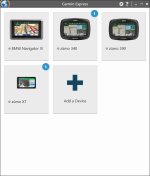
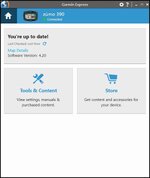
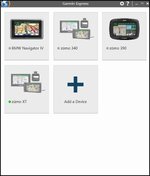
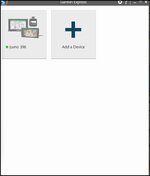
First Screen Garmin Express
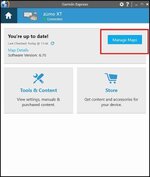
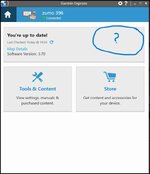
See if updates are avaliable for your Device
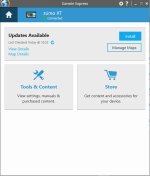
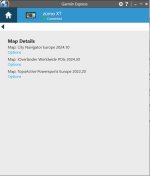
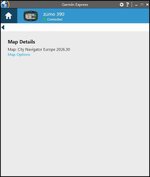
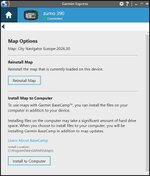
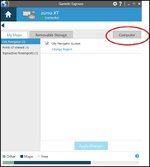
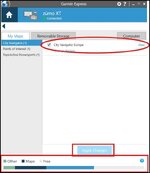
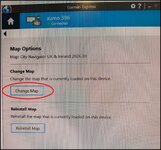
Click on options for the main map
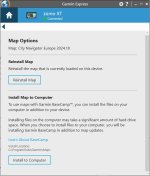
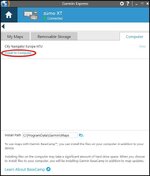
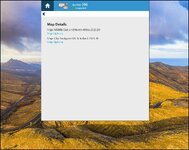
Select the option to load the map onto your computer. The version on your device and the computer will be synced.



 support.garmin.com

Select the option to load the map onto your computer. The version on your device and the computer will be synced.
View attachment 274210
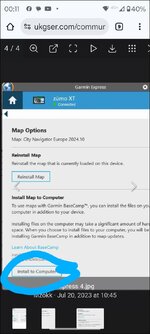
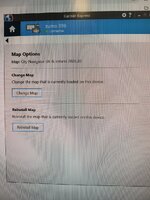
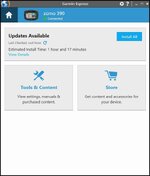
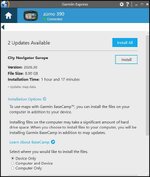



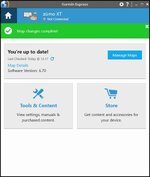
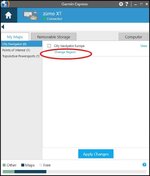
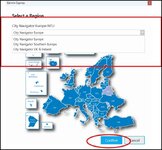
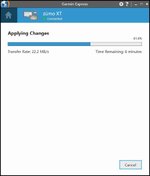

I have now retired to bed with a small bottle of Glenfiddich and a book. I shall resume your guide tomorrow thanks.

Good advice.To add to @Mzokk comments above.
There is a definite bug in Garmin express that stops updating.
You are better off deleting the current version, and downloading the latest version to do a fresh install.
I think it's to do with Window updates corrupting things
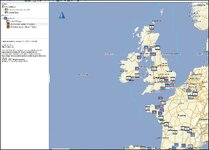
 While we are on the subject of odd Garmin Behaviour don't have Basecamp open when working with Garmin express.......they don't like each other
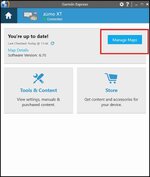
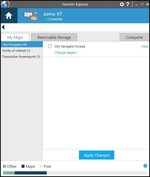
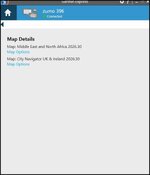
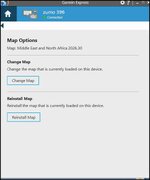
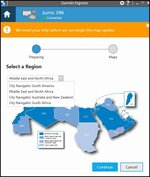
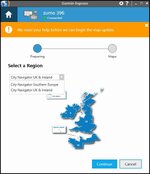
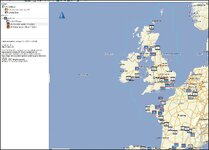
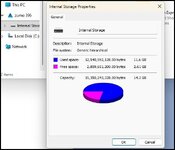
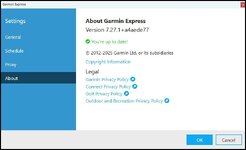
It tells me it's up to date withHI TT no its not bricked it all looks OK. But you only have 2.61GB of free space so that's why you can't get all of Europe on your device. The maps for the Middle East and North Africa would have to be removed to free up space to load the Europe maps or if you wanted to retain both you could add a Micro SD card to the device and Garmin express should be able to detect it and divide the European maps between the Unit and the MicroSD card. You have a nice unit that appears to have a license for the mapping for much of the world and you can choose to have what's appropriate. What version of Garmin Express are you using the current version is this one.
View attachment 461696
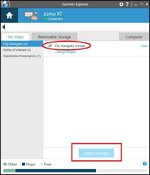
If you are not on this version try updating it to see if you get options to check and uncheck maps. If you are hopefully there is an option somewhere to remove the mapping from the device under "Change Map" to remove MENA maps and install Europe. Lets know how you get on.



 .
.